KBR Timesheet Helper

| Action | Project ▾ | Project Task ▾ | CBS ▾ | Role ▾ | Type ▾ | Description ▾ | Cat. ▾ | Mon ▾ | Tue ▾ | Wed ▾ | Thu ▾ | Fri ▾ | Sat ▾ | Sun ▾ | Total ▾ |
|---|---|---|---|---|---|---|---|---|---|---|---|---|---|---|---|
| Daily Totals: | 0 | 0 | 0 | 0 | 0 | 0 | 0 | 0 | |||||||
Validation Issues
Weekly Summary by Category
📊 How to Import CSV into Microsoft Dynamics
Follow these steps to import your exported timesheet CSV into Microsoft Dynamics (MSD).
Export Your Timesheet CSV
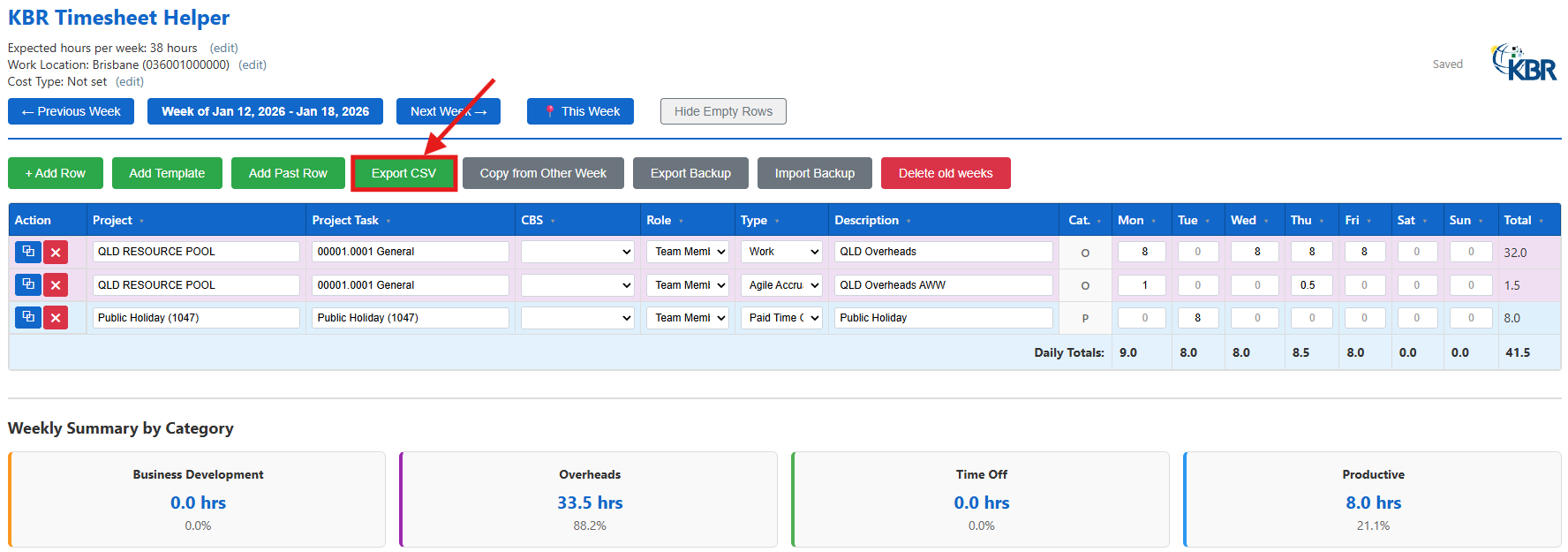
Click the "Export CSV" button at the top of your timesheet to create a CSV file of your weekly hours.
- Ensure all validation errors are resolved before exporting
- CSV file will be named:
Timesheet_YYYY-MM-DD.csv - File will download to your PC's default downloads folder
Open Microsoft Dynamics
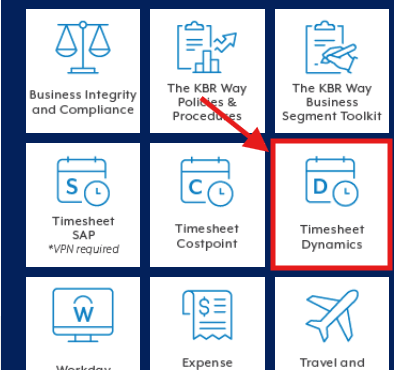
Log into your Microsoft Dynamics timesheet entry page
- Navigate to MSD Timesheet, this can be accessed from the KBR Sharepoint
Access Import Wizard
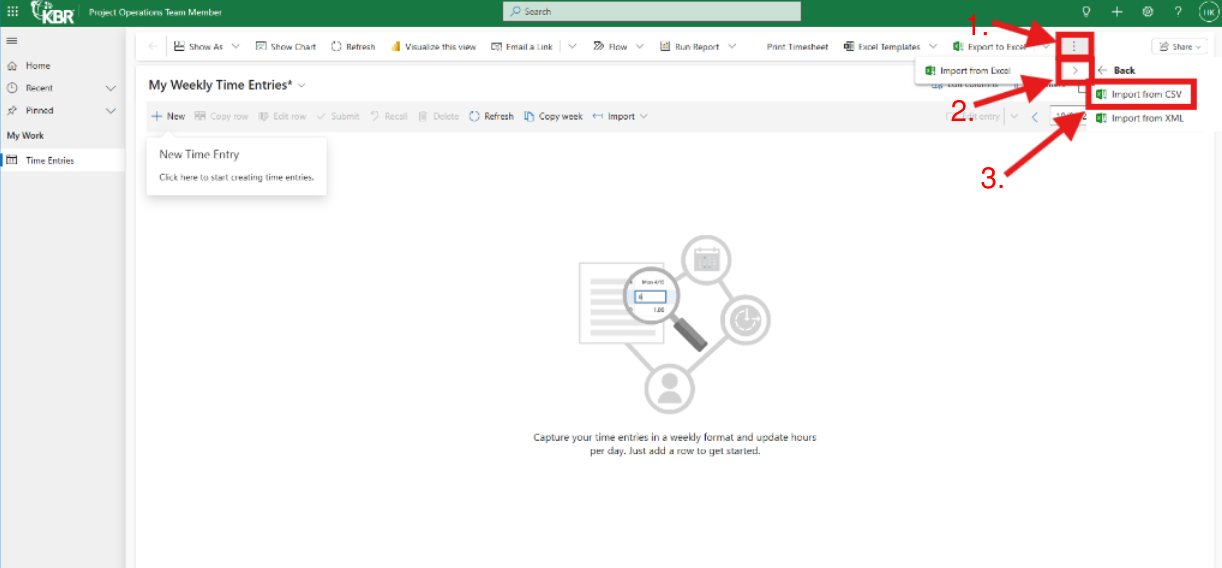
Locate and open the CSV import functionality in Microsoft Dynamics.
- Look for "Import from CSV" button
- The import wizard should open in a new dialog
Select CSV File
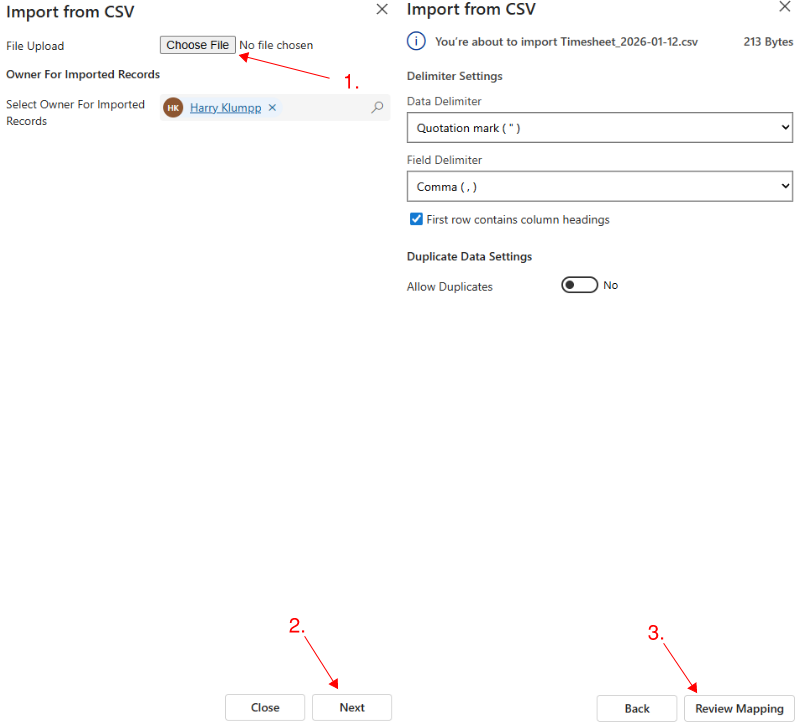
Browse for and select your exported timesheet CSV file.
- Click "Browse" or "Choose File" button
- Navigate to your downloads folder
- Select the
Timesheet_YYYY-MM-DD.csvfile - Verify the file name appears in the import dialog
- Click "Next" followed by "Review Mapping" buttons
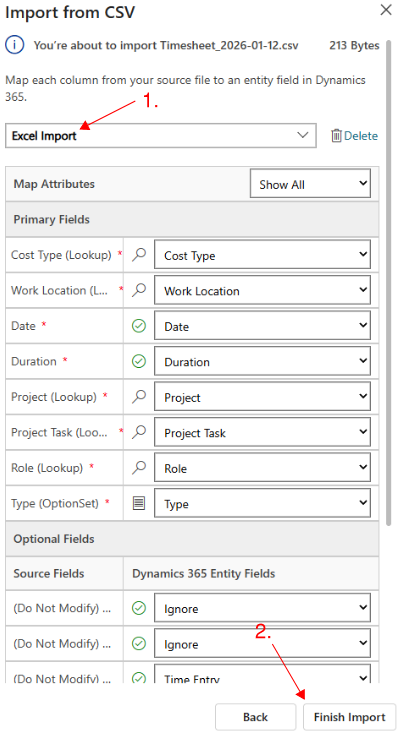
Map CSV Columns
Verify that CSV columns are correctly mapped to MSD fields.
- Change "Name Your Data Map" to "Excel Import" using the drop-down menu
- Check that Project, Task, Date, and Duration fields are mapped
- Ensure Cost Type, CBS, and Role fields align correctly
- Most systems auto-detect standard CSV headers
- Adjust mappings if necessary
- Click "Finish Import" button
Validate Imported Data
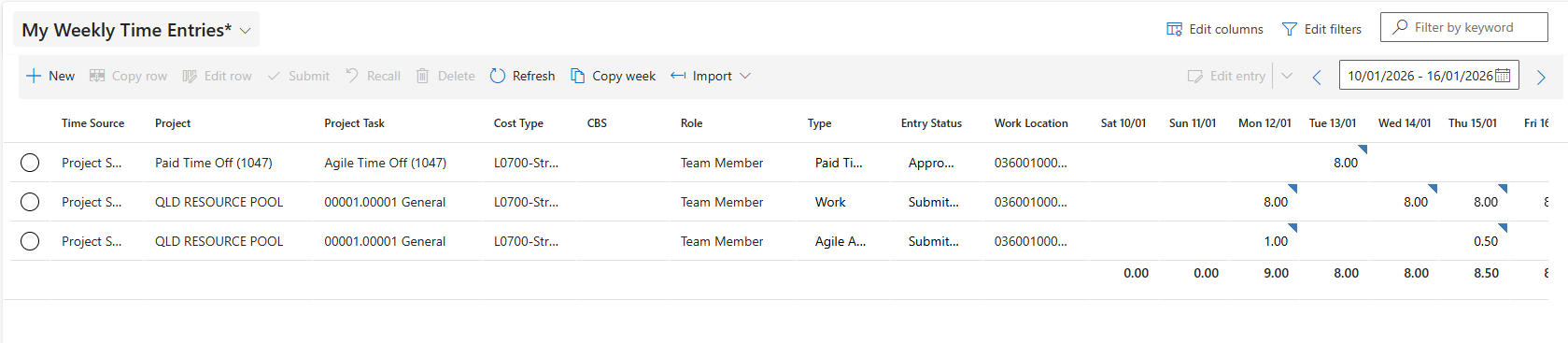
Review the imported timesheet and check for any errors.
- Close the import wizard and refresh the page after a few minutes.
- Verify imported timesheet contents match what you expected to be there
- Confirm daily and weekly hours totals are correct
- Submit timesheet as usual if it is all correct
🔧 Troubleshooting & Common Questions
Common Issues
CSV Export Issues
Cause: The day with agile accrual entered does not have enough regular working hours
Fix: In order to enter agile accrual for a given day, there must be enough regular work hours for the day i.e. 40 hours/week need 8 hours/day
Prevention: Ensure that regular worked hours are entered before exporting.
Cause: No CBS was entered for project
Fix: Enter CBS from drop-down menu
Prevention: Enter a CBS for all project work, this does not need to be done for overheads
Cause: No description was entered for time entry
Fix: Add description to time entry
Prevention: Enter descriptions for each project row
Cause: There are validation errors that must be fixed before exporting.
Fix: Check the "Validation Issues" panel (if visible) and resolve all errors marked in red.
Prevention: Regularly check validation status as you enter data. Common issues include missing descriptions for Resource Pool projects.
MSD Import Issues
Cause: File extension may be wrong or incorrect wizard was opened, or CSV format doesn't match MSD expectations.
Fix: Ensure file has .csv extension. Try re-exporting from this tool.
Prevention: Confirm that the import CSV function is being used within MSD.
Cause: MSD can cause an error if two identical project tasks exist in different projects
Fix: Instead of using "Project Task" use the "Project Task ID", the mapping should deal with this without any further changes.
Data Validation Issues
Cause: Resource pool projects require a description to categorize the activity.
Fix: Add a description (e.g., "Maritime TL - Team meeting", "BD - Client proposal") to any row with "RESOURCE POOL" in the project name.
Prevention: Use Templates feature to save common resource pool descriptions for quick reuse.
Cause: Category is auto-determined by project name keywords. Some projects may not match expected patterns.
Fix: Category is for display only and doesn't affect CSV export. The correct data is still exported to MSD.
General Questions
Answer: Unfortunately there isn't a way to do this. Export each week separately and import them one at a time into MSD. Each CSV file represents one week.
You can use the week navigation buttons to move between weeks and export each one individually.
Answer: Yes, you can edit hours in Microsoft Dynamics after import. However, changes made in MSD won't sync back to this tool.
Answer: This tool exports dates in DD/MM/YYYY format (e.g., 25/12/2025), which is the standard format for most MSD configurations.
If your MSD instance uses a different format, contact your system administrator to confirm the required format.
Answer: Use the "Public Holiday" template (Templates → Public Holiday) which pre-fills the correct project and type.
Typically: Project = "Public Holiday (1047)", Type = "Paid Time Off", with 8 hours then add a description for the specific holiday.
Work: Standard project hours, billable or non-billable work activities.
Paid Time Off: Annual leave, sick leave, public holidays - time off that's paid.
Agile Accrual: Flex time or agile hours that accrue for later use (check with your company policy).
✉️ Additional Questions & Feedback
For bugs, feature requests, or general feedback about the KBR Timesheet Helper, please contact Chris Leaman (National Maritime Team Lead) at [email protected].
We welcome your input to help improve this tool!